

Odoo Report Studio Module
No. 1 PDF report designer for Odoo Community — design, edit, and customize reports without writing code
Odoo Report Studio is a no-code PDF report designer module developed by CodersFort, exclusively for the Odoo Community Edition. It enables business users to edit existing reports, create new ones from scratch, and customize report design — including layout, font size, images, logos, tables, address blocks, and headers — without any developer involvement. Compatible with All Odoo versions.
- Odoo Community Edition
- |
- No Coding Required
- |
- PDF Report Editor
- |
- Drag & Drop (v14–v16)
- |
- Drop Down (v17)

What can you do with Odoo Report Studio?
Odoo Report Studio gives you complete control over your business documents without writing a single line of code. Using a simple drag-and-drop report designer, you can quickly create, edit, and print professional reports tailored to your business needs.
Edit existing reports
Modify the layout and content of existing reports — invoices, quotations, delivery orders — to match your specific business needs.
Create new reports from scratch
Build entirely new PDF report templates by pulling data from any Odoo module and formatting it according to your preferences.
Customize report design
Control visual elements including font size, layout, logos, headers, images, tables, address blocks, and color — all visually, without code.
What Is the Odoo Report Builder Module?
Odoo Report Studio is a feature within the Odoo Community Edition that allows users to customize and create PDF business reports. It provides tools to edit existing reports such as invoices and quotations, build entirely new reports from scratch, and control visual design elements — all without requiring programming skills.
The module is priced at €150 and supports all Odoo versions on both Community and Enterprise editions.
| Type | Odoo Module (Addon) |
|---|---|
| Price | €150 (One-time) |
| Developer | CodersFort |
| Odoo Versions | All Versions |
| Edition | Community & Enterprise |
| Export Format | |
| Coding Required | None |
| Purchase | Odoo Apps Store / CodersFort |
See Odoo Report Studio in Action
Watch how to create and export a fully customised Odoo Sales Report in under 3 minutes — no code, no developer, no waiting.
How to Create Custom Reports with Odoo Report Studio
Build Professional Odoo Reports Without Writing Code
Odoo Report Studio lets you create, edit, and customize PDF reports using a visual drag-and-drop interface. Instead of modifying QWeb templates manually, business users and consultants can design invoices, quotations, purchase orders, delivery slips, and other reports directly within Odoo.
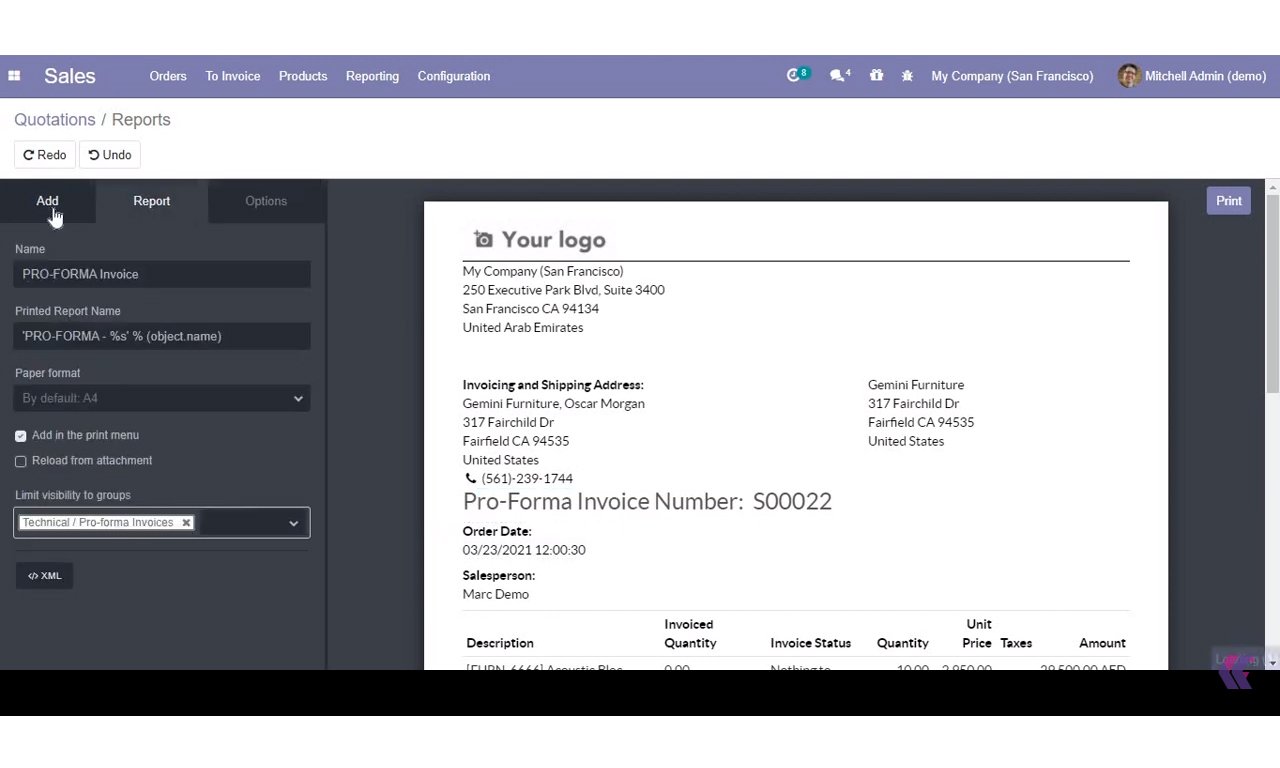
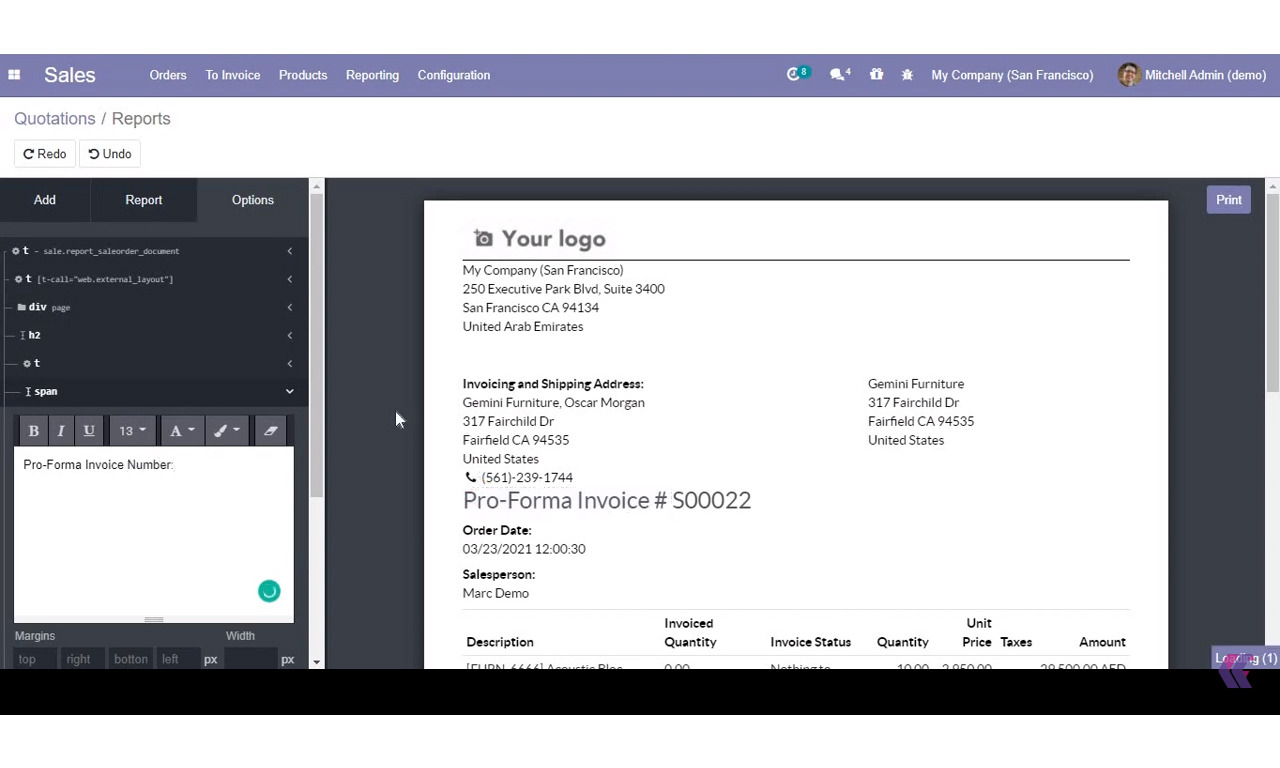
Step 1: Create a New Report
Getting started with Odoo Report Studio is simple. Create professional PDF reports from scratch using an intuitive visual editor—no programming or QWeb knowledge required. Just follow these steps to start building reports tailored to your business needs.
- Open the Odoo module where you want to create a report.
- Launch Odoo Report Studio from the top navigation bar.
- Click Create New Report to start a new report template.
- Select the report model you want to use.
- Choose the report layout that best fits your document.
- Begin designing your report using the drag-and-drop visual editor.
Step 2: Choose the Right Report Type
Choose the report layout that best matches your business document.
- Select External for customer-facing reports like Invoices, Quotations, Delivery Orders, and Purchase Orders.
- Use External to automatically include your company header, footer, logo, and branding.
- Select Internal for reports such as Inventory, Attendance, Manufacturing, and Stock Valuation.
- Use Internal for a clean layout with minimal branding for internal use.
- Select Blank to start with a completely empty report layout.
- Create custom certificates, labels, forms, and industry-specific reports with complete design flexibility.
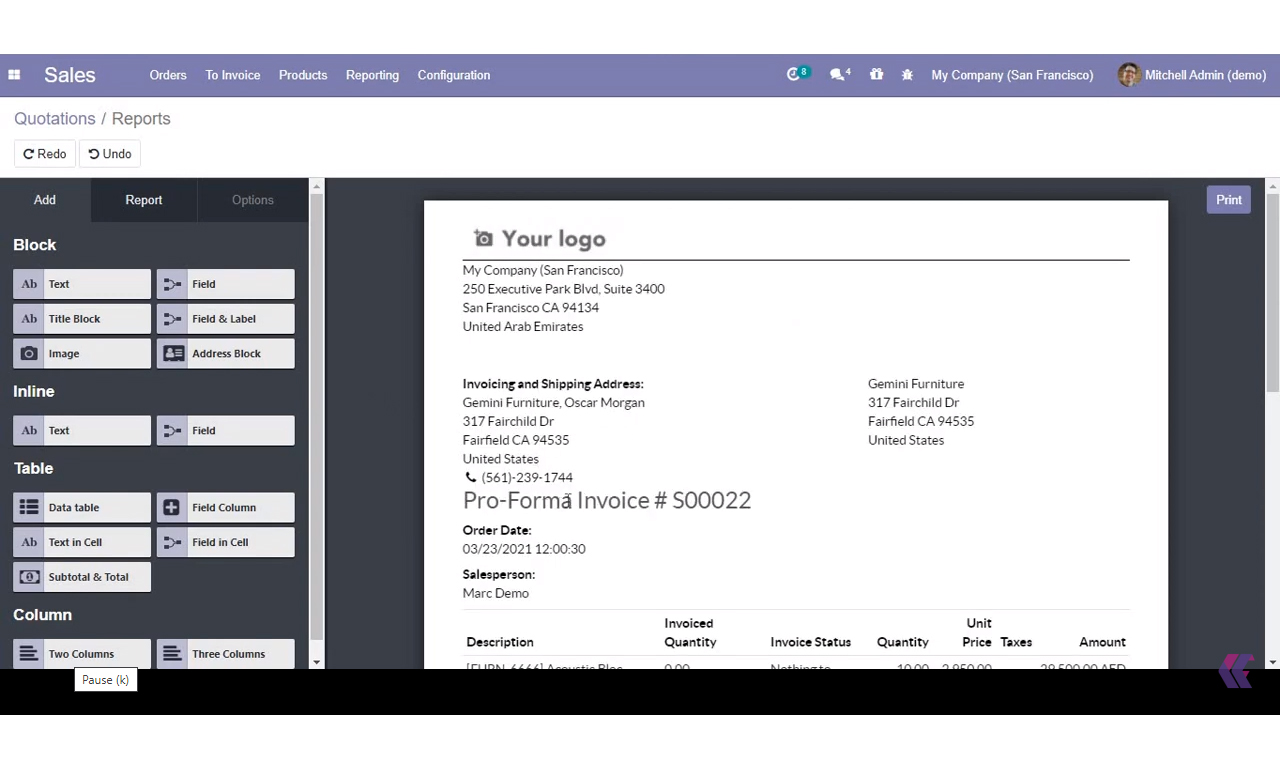
Step 3: Add Report Elements
Use the Add menu to insert the elements you need to build your report.- Add Blocks for text, images, company logos, titles, addresses, and sections.
- Insert Inline Fields like Customer Name, Invoice Number, Order Date, or Employee Name.
- Add Tables to display products, quantities, taxes, totals, and other business data.
- Use Columns to organize addresses, contact details, and side-by-side content.
- Drag and position elements to create a clean and professional report layout.
- Continue adding and arranging elements until your report is complete.
Step 4: Customize Your Report
Use the Options panel to customize every element of your report.- Choose how fields are displayed using widgets like Date, Time, Currency, and Percentage.
- Connect elements to Odoo fields using field expressions.
- Adjust the layout by changing width, margins, padding, spacing, and positioning.
- Format your report with fonts, colors, alignment, headings, bold, italic, and underline.
- Show or hide elements based on user groups or business conditions using conditional visibility.
- Format addresses or use the HTML editor for advanced report customization.
How to Install Odoo Report Studio?
A step-by-step installation guide for Odoo — no developer experience required
Installing the Odoo Report Studio module takes under five minutes and requires no coding knowledge. Download the module from the CodersFort app store or the official Odoo Apps marketplace, upload it to your custom addons directory, enable developer mode, and install it from the Apps list. Follow the six steps below to get Odoo Report Studio running on your Odoo instance and start customizing PDF reports right away.
Step 1 — Download the module
Purchase the module from the Odoo App Store or directly from CodersFort. You will receive the report_studio module as a ZIP file.
Step 2 — Upload to your Odoo server
Extract the ZIP and copy the report_studio folder to your Odoo custom addons directory
Step 3 — Enable developer mode
In Odoo, go to Settings → General Settings → scroll to Developer Tools → click Activate the developer mode.
Step 4 — Update the app list
Go to the Apps menu, click Update App List, and confirm when prompted.
Step 5 — Install the module
Search for "Report Studio" in the Apps list, find the CodersFort module, and click Install.
Step 6 — Access the module
Refresh your browser. The Report Builder menu will appear in your Odoo interface.
Modify an existing report with Odoo Report Studio
Let's talk about how to modify an existing report in Odoo Report Studio
Rather than writing a report from scratch, you can edit any existing Odoo report directly inside Odoo Report Studio in just a few steps. Navigate to the form where the report can be printed, click the Odoo Studio icon at the top of the navigation bar, choose Reports from the Studio panel, and select the report you want to modify. Odoo Report Studio opens it in a live print preview — click any field to start editing.
When you open a report in Odoo Report Studio, it displays exactly as it would print. You can add, edit, remove, and rearrange fields directly from this view. Odoo Report Studio lets you make adjustments to any field in the report simply by clicking on it — the left-hand Options panel updates instantly to show all available settings for that element.
How to edit an existing report in Odoo Report Studio — step by step
- Navigate to the form in Odoo where the report can be printed (e.g. a Sales Order, Invoice, or Purchase Order).
- Click the Odoo Studio icon in the top navigation bar to open the Studio panel.
- Select Reports from the Studio panel to view all available report templates for that model.
- Click the report you want to edit — Odoo Report Studio opens it in a live print preview.
- Click any field or element in the preview to open its settings in the left-hand Options panel.
- Adjust the field settings — widget, margin, font, color, visibility, or decoration — as needed.
- Changes save automatically. Click Print to test the updated report output.
Odoo Report Studio, the PDF report customization module by CodersFort, allows users to modify any existing Odoo report without writing a new template from scratch.
To edit an existing report, users navigate to the relevant form in Odoo, click the Studio icon in the top navigation bar, select Reports, and click the report to open it in a live print preview.
Clicking any field opens the Options panel on the left, which provides eight editable properties: Widget (controls rendering format), Margin (adjusts spacing), Text decoration (bold, italic, underline), Colors (text and background), Font style (h1–h6 sizing), Visible if (conditional display based on record value), Visible to (user group restriction), and Remove from view (permanently hides the field).
Changes are saved automatically. This feature is available in Odoo Community Edition versions 14, 15, 16, and 17.
When you click a field in the Odoo Report Studio edit view, the Options panel on the left displays all available settings for that element. Every field in the report can be customized independently — here is what each option controls.
| Option | Description |
|---|---|
| Widget | Controls how the field value is rendered (e.g. date format, monetary display). |
| Margin | Adds white space around the selected element. |
| Text decoration | Bold, italic, or underline the field label or value. |
| Colors | Change the element's text or background color. |
| Font style | Resize from h1 (largest) to h6 (smallest). |
| Visible if | Show the field conditionally based on a record value or user context. |
| Visible to | Restrict the field to a specific user group. |
| Remove from view | Permanently hide the field from this report. |
Odoo Report Studio Features
Create and Customize Reports with Ease
Whether you need to build a report from scratch or improve an existing one, Odoo Report Studio provides a flexible way to work with layouts, fields, and design elements. It is designed to reduce development time, improve report consistency, and give users better control over how information appears in printed or digital outputs.
Code-Free Report Building
Build and modify reports without writing code. Odoo Report Studio allows users to create professional report layouts through a visual interface, making it easier for non-technical users to manage report design.
Developer-Friendly HTML Editing
Use built-in HTML editing options to customize report content, structure, and presentation. This gives developers and advanced users more control over formatting while keeping the workflow simple and efficient.
Create New Reports
Design reports from the ground up for different business needs. You can choose layout styles such as external, internal, or blank templates depending on the report structure you want to create.
Customize Existing Reports
Open an existing report in Odoo Report Studio and update its layout, visibility, spacing, colors, and formatting without affecting the original template. This helps businesses adapt reports quickly to changing requirements.
Drag-and-Drop Elements
Add report components such as text blocks, tables, columns, images, address fields, and data values using a simple drag-and-drop workflow. This makes report customization faster and more accessible.
Address Separator Control
Control how address fields appear in reports by choosing separator styles such as line breaks, commas, dashes, vertical bars, or slashes. This improves readability and formatting consistency across documents.
BUY ODOO MODULES
CODERSFORT DEVELOPS AND MAINTAINS A LIBRARY OF 1,000+ ODOO MODULES. FEATURED APPS INCLUDE:
CodersFort develops and maintains a growing library of 1,000+ Odoo modules designed to extend and enhance the standard Odoo ERP platform. Each module is built by certified Odoo developers, fully tested, and ready to integrate with any Odoo version.



Who Uses Odoo Report Studio?
A No-Code PDF Report Designer for Every Business Team
Odoo Report Studio empowers business users to create, customize, and modify professional PDF reports without writing code. Whether you need to edit invoices, quotations, delivery slips, or build entirely new report templates, Report Studio gives every department complete control over report design.
Accountant
Customize invoices, payment receipts, tax reports, and financial documents with your company branding. Add or remove fields, modify layouts, and generate professional PDF reports without developer support.
Sales Manager
Personalize quotations, sales orders, and customer reports by adding custom fields, product information, logos, and pricing layouts. Deliver polished documents that match your brand identity.
Warehouse Controller
Modify delivery slips, picking lists, stock transfer reports, and inventory documents. Display only the information your warehouse team needs for faster operations and fewer printing errors.
HR Professional
Design employee contracts, payslips, attendance reports, leave summaries, and HR documents with custom layouts. Ensure every document follows your organization's standards.
Odoo ERP Consultant
Create reusable report templates for clients, customize existing reports, and deploy branded PDF documents without writing complex QWeb code. Reduce implementation time and simplify client customization.
Business Owners
Create professional business reports, invoices, purchase orders, and operational documents tailored to your company's requirements. Make report changes instantly without waiting for technical resources.
What are the Benefits of Odoo Report Studio?
Why Use Odoo Report Studio for Custom PDF Reports?
Odoo Report Studio enables businesses to create, customize, and manage professional PDF reports without coding. From invoices and quotations to delivery slips and purchase orders, you can design reports visually, apply company branding, and modify layouts in minutes.
Odoo Report Studio gives your team complete control over report customization while reducing development time and simplifying report maintenance.
No Coding Required
Business users can create and customize reports using a drag-and-drop interface without writing QWeb, XML, or Python code.
Live Report Preview
Preview every change instantly as you make any edit or changes, making report design faster and eliminating trial-and-error.
Three Ready-Made Report Layouts
Choose from External, Internal, or Blank report layouts to quickly create customer-facing, internal, or fully custom documents.
Complete Layout Customization
Modify headers, footers, logos, tables, fonts, colors, spacing, margins, and alignment to match your company's branding.
Dynamic Fields & Tables
Insert customer details, product lines, totals, taxes, dates, barcodes, and other dynamic Odoo data with just a few clicks.
Conditional Visibility
Control report visibility by displaying or hiding elements based on user roles, record values, or specific business conditions.
Advanced HTML Support
Developers can extend reports with custom HTML when advanced layouts or specialized formatting are required.
Works with Existing Odoo Reports
Edit standard Odoo reports like invoices, quotations, purchase orders, and delivery slips without recreating them from scratch.
Built by Certified Odoo Experts
Odoo Report Builder is developed and maintained by CodersFort — an Odoo-certified development partner based in Kollam, Kerala, India. With over 7 years of Odoo ERP experience and more than 1000 published Odoo modules, CodersFort has helped businesses across manufacturing, trading, retail, healthcare, and logistics implement and customise Odoo for their specific needs.
Implementation & Support:
We help you install and configure Odoo Report Studio in your Odoo instance and customize report templates to match your business needs. Whether you need branded invoices, quotations, delivery slips, purchase orders, or custom PDF reports, our team can tailor layouts, add custom fields, and optimize report designs without disrupting your workflow. We typically respond to support requests within one business day during Indian business hours (Mon–Fri).
Odoo Report Studio
by CodersFort
Starting from
Frequently Asked Questions About Odoo Report Studio
Everything You Need to Know About Odoo Report Studio
Have questions about Odoo Report Studio? Find answers to the most common questions about report creation, customization, features, compatibility, installation, and support. Learn how Odoo Report Studio helps businesses design professional PDF reports without coding while simplifying report management across your Odoo ERP system.
What is Odoo Report Studio?
Odoo Report Studio is a no-code report designer that allows you to create, edit, and customize PDF reports directly within Odoo. You can modify invoices, quotations, purchase orders, delivery slips, and other business documents using a visual drag-and-drop interface without writing QWeb or XML code.
Do I need coding knowledge to use Odoo Report Studio?
No. Odoo Report Studio is designed for business users, consultants, and administrators. Reports can be created and customized using a visual editor without programming knowledge.
Can I customize existing Odoo reports?
Yes. Odoo Report Studio lets you modify existing Odoo reports, including layouts, logos, headers, footers, tables, fonts, colors, and dynamic fields without recreating the report from scratch.
Can I add my company logo and branding?
Yes. You can add your company logo, header, footer, colors, fonts, and other branding elements to create professional business documents that match your corporate identity.
Can I add custom fields to reports?
Yes. You can insert custom Odoo fields, calculated values, dynamic tables, barcodes, QR codes, images, and other data directly into your reports using the visual editor.
Can I control which users see specific report elements?
Yes. Odoo Report Studio supports conditional visibility, allowing you to show or hide report elements based on user groups, record values, or business rules.
Is Odoo Report Studio suitable for businesses of all sizes?
Yes. Whether you're a small business, a growing company, or a large enterprise, Odoo Report Studio simplifies report customization while reducing development time and maintenance costs.
Why choose CodersFort for Odoo Report Studio?
CodersFort provides installation, configuration, customization, and ongoing support for Odoo Report Studio. Our experts can tailor report layouts, implement business-specific requirements, integrate custom fields, and help you build professional reports that match your operational workflows.
Can I create completely new reports with Odoo Report Studio?
Yes. Odoo Report Studio allows you to create brand-new PDF reports from scratch using a visual editor. You can choose a report layout, add dynamic fields, insert tables, and design reports that meet your business requirements.
Does Odoo Report Studio support custom business requirements?
Yes. You can customize report layouts, add company branding, include custom fields, control element visibility, and create reports tailored to your specific business processes without modifying the core Odoo code.
Is Odoo Report Studio compatible with multiple Odoo versions?
Yes. Odoo Report Studio is designed to work with supported Odoo Community and Enterprise versions. Always check the module version to ensure compatibility with your Odoo installation.
Can I edit reports after they are created?
Absolutely. Odoo Report Studio lets you reopen and modify existing reports at any time. You can update layouts, add or remove fields, change formatting, and instantly preview your changes before printing or exporting the report.
